KDNA Admin Training
Users can reset their own passwords. (Click here for instructions.) The Network Leader can also reset a user's password. To reset a user's password:
- Log into KDNA at kdna.kdna.com.
- Select Admin -> Edit Users / Reset Passwords.
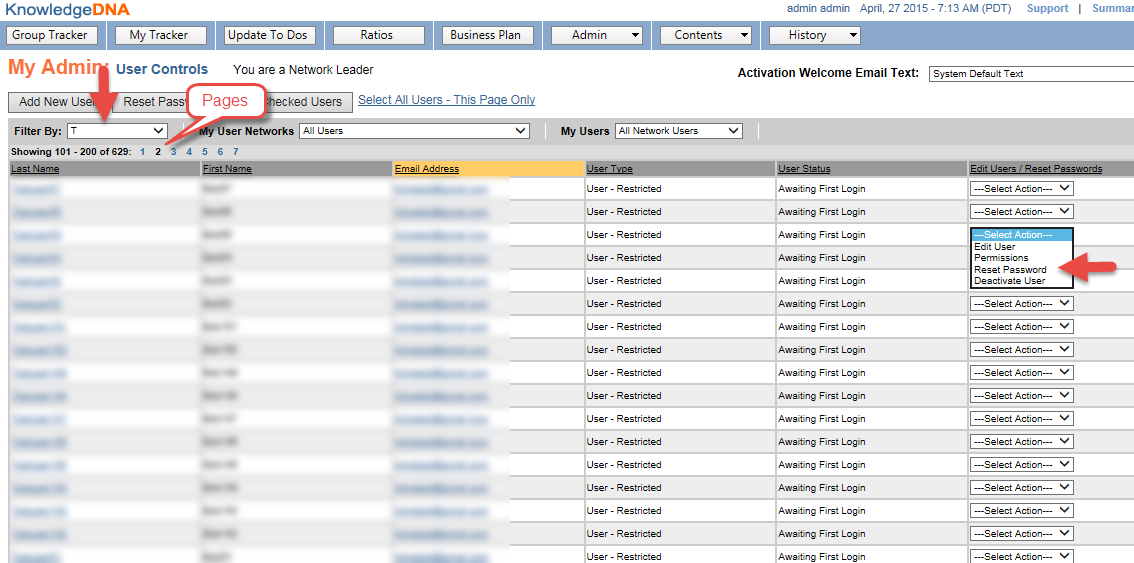
- Select the first letter of the user's last name in the Filter By pull down.
- Find the name of the user in the list. You may need to "page" to find the user.
- In the pull down to the far right, select Reset Password.
- A dialog will appear asking whether you want to also receive a copy of the user's new temporary password. (The user will receive the email in either case.)